
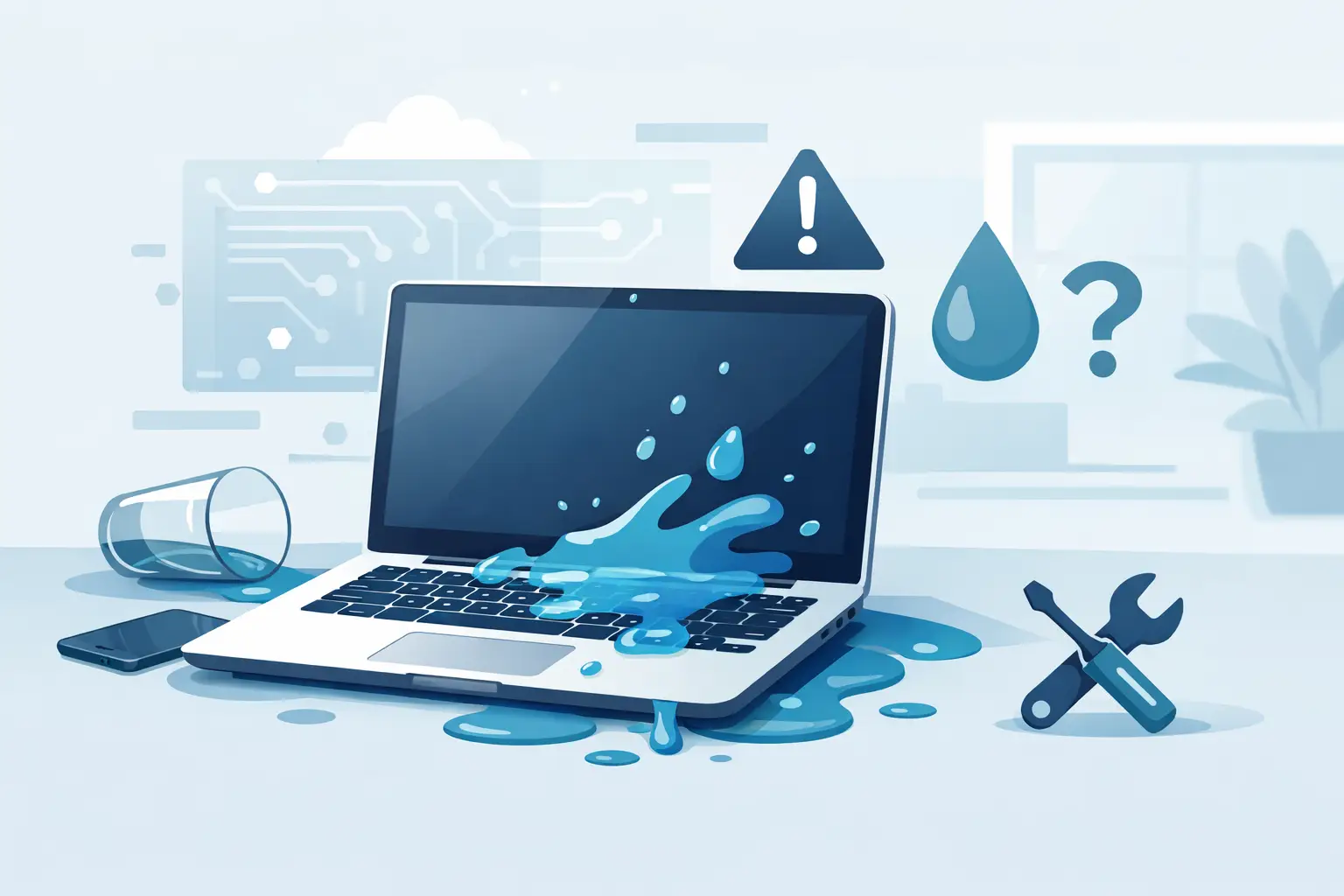
A drink tipped over during coursework, a leaking bottle in a work bag, or a cup of tea beside the keyboard can turn into a serious fault in seconds. This guide to laptop liquid damage explains the practical actions that give your device the best chance of recovery – and the mistakes that can make a repair harder and more expensive.
Liquid damage is not always obvious straight away. A laptop may appear to work after a spill, then develop keyboard faults, charging problems, random shutdowns or screen issues days later. The aim is to stop power reaching wet components, prevent liquid moving further through the device and get an honest assessment before corrosion takes hold.
What to do immediately after a spill
First, switch the laptop off. Hold the power button down if necessary, but do not spend time saving documents or closing programmes. Your files matter, but electrical current and moisture are a much greater immediate risk to the motherboard.
Unplug the charging cable and remove any connected devices, including USB drives, headphones, memory cards and external displays. If the battery is removable, take it out. Most modern laptops have internal batteries, so do not attempt to open the case unless you are confident doing so without causing further damage.
Gently blot visible liquid with a clean, lint-free cloth. Do not press repeatedly on the keys, as this can push moisture deeper underneath the keyboard. Position the laptop so liquid can drain away from the keyboard and screen hinge. A partly open, inverted tent shape can help, provided it is stable and there is no risk of it falling.
Keep it switched off. This is the single most useful action you can take. Turning it on “just to check” can create a short circuit across components that may otherwise have been recoverable.
What not to do with a wet laptop
The internet is full of quick fixes, but several common suggestions are more likely to cause problems than solve them. Do not use a hairdryer, put the laptop on a radiator or leave it in direct heat. High heat can warp plastic parts, damage the battery and drive moisture further into sensitive areas.
Avoid rice. It does not properly remove liquid trapped beneath components, connectors or keyboard layers. Rice dust can also get into ports and vents, creating another cleaning job.
Do not shake the laptop, keep typing to test keys or plug it in to see whether it charges. A laptop that appears dry from the outside can still hold moisture around the battery connector, charging circuit and motherboard. Time matters, but careful handling matters more.
Why the type of liquid changes the repair
Plain water is generally less damaging than other liquids, but it is not harmless. Tap water contains minerals that can leave conductive deposits behind. Once power is introduced, these deposits can contribute to corrosion and short circuits.
Sugary drinks, tea, coffee, juice, alcohol and fizzy drinks need more urgent attention. As they dry, they leave sticky residue that affects keys, trackpads, connectors and circuit boards. Milk is particularly problematic because residue can remain even after the visible moisture has gone.
The amount and location of the spill also affect the outcome. A few drops on the corner of a laptop lid are very different from a full drink across the keyboard. On many models, the keyboard sits directly above major internal components. On others, a protective layer may limit the damage, but it should never be assumed that the liquid has stopped at the keys.
When to arrange a professional liquid damage assessment
If liquid reached the keyboard, ports, vents, trackpad or underside of the laptop, professional inspection is the sensible next step. This is especially true if the device was powered on when the spill happened, has already been restarted, or contains work, study or family files you cannot afford to lose.
A proper assessment involves opening the laptop safely, disconnecting the battery, identifying moisture or residue, and checking the affected areas. The technician can then clean corrosion, inspect connectors and test the board, keyboard, screen, charging system and battery as needed.
It depends on the model and the extent of contamination, but early assessment often gives the best chance of avoiding a major board fault. Leaving a device for several days because it “seems fine” can allow corrosion to develop quietly. That can turn a simple clean-up into a keyboard replacement, charging repair or more advanced motherboard work.
For Sheffield customers, Mobitech Sheffield can assess laptop liquid damage with a straightforward, no-nonsense approach. You should be told what has been found, which repair is recommended and what it will cost before work goes ahead. If the device is beyond economical repair, an honest diagnosis is more useful than paying for work that will not deliver a dependable result.
Can a liquid-damaged laptop be repaired?
Often, yes. Many laptops recover fully when they are powered down quickly and professionally cleaned before corrosion spreads. The repair may be limited to internal cleaning and inspection, or it may involve replacing a damaged keyboard, battery, charging port, trackpad, screen or other component.
There are limits. If liquid has caused significant corrosion on the motherboard, damaged power-management circuits or affected multiple components, repair can be more involved. In some cases, the cost of extensive board-level work may not be sensible compared with replacing the laptop. A trusted repairer should explain this clearly rather than promising a result before the device has been inspected.
The age and value of the laptop matter too. A newer MacBook, Microsoft Surface or premium Windows laptop may justify detailed diagnostic work because replacement is expensive. For an older device, recovering important data and fitting only essential parts may be the more cost-effective route.
Protecting your files after a spill
Do not attempt to copy files from a wet laptop at home. The first priority remains preventing further electrical damage. Once the device has been assessed and made safe, data recovery options can be considered.
If the storage drive is undamaged, files may be recoverable even where the laptop itself needs substantial repair. Modern laptops can make this more complicated because storage may be soldered to the motherboard rather than fitted as a removable drive. That is another reason to avoid repeated start-up attempts: preserving the board can protect access to your data.
If your laptop starts again after cleaning, back up essential files promptly to a secure cloud service or external drive. This is sensible after any liquid incident, even if the repair appears successful. Some faults take time to show, particularly where residue has affected a connector or component.
Signs damage may be developing later
A laptop does not need to be completely dead to have liquid-related faults. Watch for keys that stick or stop responding, a trackpad that clicks incorrectly, charging that cuts in and out, unexpected overheating, distorted audio, a flickering screen or a battery that drains unusually fast.
You may also notice a burning smell, crackling sound, repeated restart loop or a warning that the charger is not recognised. Stop using the laptop and disconnect the charger if this happens. Continuing to use a device with an active electrical fault can increase the damage and may affect other components.
Reducing the risk next time
No one plans to spill a drink, especially when rushing between lectures, working from home or commuting. A few practical changes can make a difference: keep drinks on a separate surface where possible, use a bottle with a secure lid in your bag, and make regular backups part of your routine.
A keyboard cover can help with dust and light splashes on some laptops, but it is not a guarantee against liquid ingress and may affect airflow or screen clearance on certain models. It is useful only when it fits properly and is designed for your device.
Act quickly, keep the laptop powered off and avoid home remedies that add risk. A calm response in the first few minutes can make the difference between a straightforward repair and a device that cannot be saved.
