
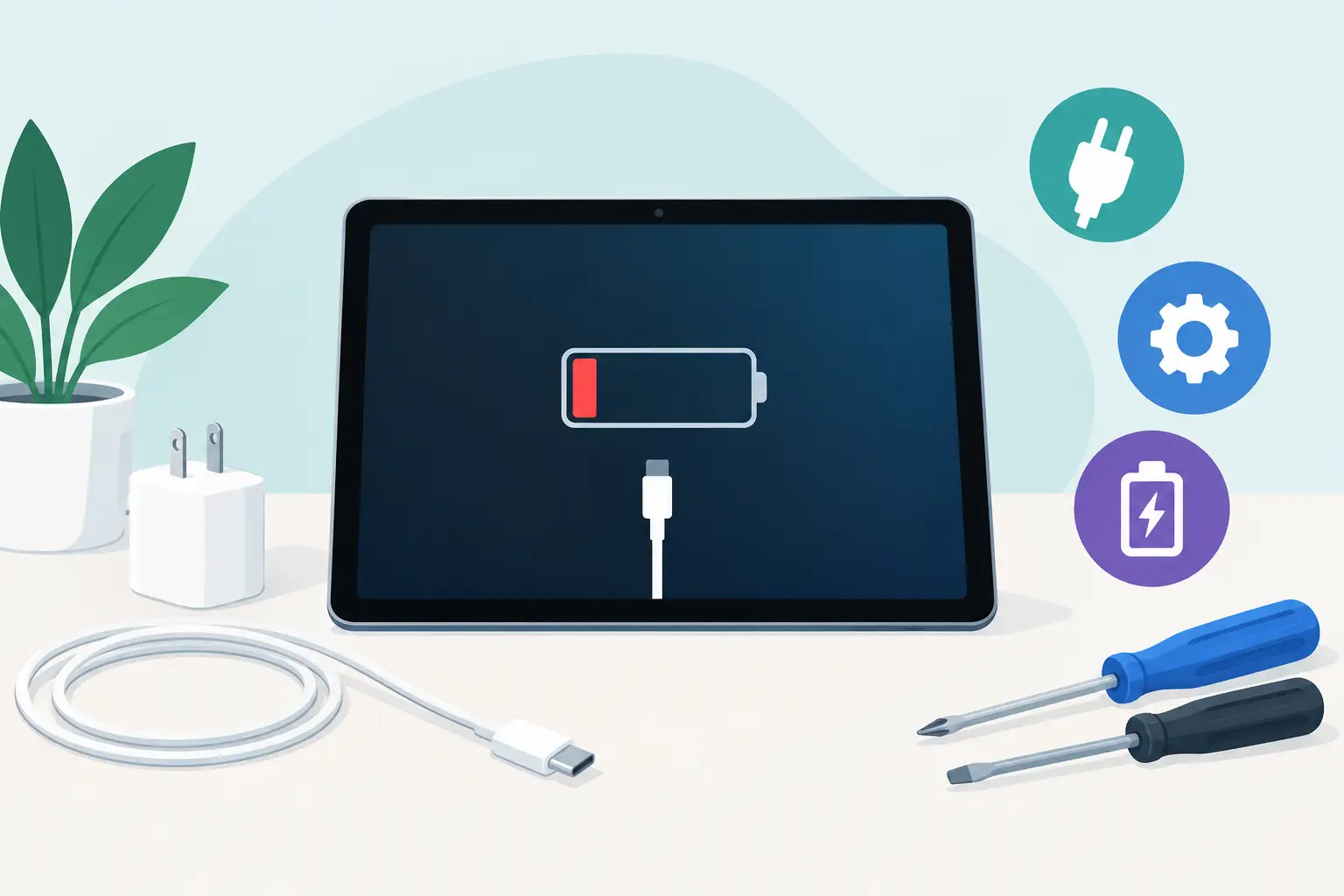
Your tablet shows the charging symbol, yet the battery percentage stays exactly where it is. Or perhaps the cable only works when held at a particular angle. This guide to tablet charging faults explains what those signs can mean, which checks are safe to make at home, and when a professional repair is the sensible next step.
A charging problem does not always mean the tablet itself has failed. Cables, plugs, wall sockets and built-up debris are common causes. However, repeated charging failures can also point to a worn battery, damaged charging port or a deeper board-level fault. The key is to rule out the simple causes without risking further damage.
Start with the charging setup
Before assuming the tablet needs repair, test the full charging setup. Try a known-working cable and mains adaptor that is suitable for your device. A low-quality cable may still show a charging icon while delivering too little power to increase the battery level, particularly when the screen is on or apps are running.
Plug directly into a wall socket rather than a laptop USB port, extension lead or car charger. Tablets need more power than most phones, and a weak power source can make charging appear unreliable. If possible, test a second wall socket too.
It is also worth checking whether the plug and cable become unusually hot, look bent, frayed or loose, or disconnect with the slightest movement. Stop using any damaged accessory. A faulty cable is cheaper and safer to replace than it is to keep testing.
Give a fully flat tablet time
When a battery has drained completely, the screen may remain black for several minutes after connecting a charger. Leave it connected to a suitable mains charger for at least 30 minutes before trying to switch it on. Avoid repeatedly pressing the power button or disconnecting the cable every few minutes, as this can make it harder to tell whether it is taking charge.
If the tablet becomes very hot, smells unusual, has a lifting screen or a swollen back cover, unplug it straight away. These can be signs of battery damage and should be assessed by a technician rather than charged further.
Common tablet charging faults and what they indicate
The way a tablet behaves while charging can help narrow down the cause. A tablet that charges slowly is different from one that will not charge at all, and both are different from a device that charges intermittently.
The tablet charges slowly
Slow charging is often caused by an underpowered plug, worn cable or background activity using power as quickly as it arrives. Close demanding apps, switch off the screen and leave the tablet connected for a short period. If it charges normally in this state, the adaptor may not be supplying enough power for everyday use.
Older batteries can also charge slowly or lose charge soon after reaching 100%. Battery performance naturally declines with use, but a sudden change is more likely to need diagnosis. Software updates, faulty apps and overheating can affect charging behaviour as well, so consider whether the problem started after a recent update or a new app installation.
The cable only works at an angle
This is one of the clearest signs of a charging port issue. The port may be blocked with compacted pocket lint, dust or debris, preventing the connector from sitting fully in place. It could also have damaged or worn internal contacts, especially if the cable has been knocked while connected.
Do not force the plug or use metal tools inside the port. Pins can be bent easily, and a minor clean can turn into a more expensive repair. If you can see debris, a trained technician can inspect and clean the port safely, then confirm whether the connection is secure.
The charging symbol appears and disappears
An on-and-off charging icon usually means the power connection is unstable. Start by trying another cable and adaptor. If the problem continues with proven accessories, the port may be loose, contaminated or damaged. Water exposure can also cause corrosion inside the port, even if the tablet seemed fine immediately after the spill.
Moisture damage does not always show on the outside. If a charging fault began after rain, a drink spill, a damp bag or use in a steamy room, stop charging it and arrange an inspection. Continuing to apply power can worsen corrosion or cause a short circuit.
The tablet will not charge or turn on
A completely unresponsive tablet could have a flat battery, failed battery, damaged port, faulty charging circuit or software issue. Try the known-working charger and allow enough time as described above. If there is still no response, avoid opening the device yourself or repeatedly attempting force restarts.
Modern tablets are tightly assembled, often with glued screens and batteries. DIY repairs can damage the display, cables or battery, and may increase the final repair cost. Proper diagnosis identifies whether a battery replacement, charging port repair or another repair is actually required.
Safe checks before booking a repair
There are a few useful checks that do not involve dismantling the tablet. First, inspect the charging port in good light. Look for visible lint, corrosion, bent contacts or a connector that no longer fits snugly. Do not insert pins, paperclips or liquids into the port.
Next, restart the tablet if it still powers on. A software glitch can occasionally prevent normal charging detection. Check for system updates only once the battery is stable enough to complete them. If your device supports wireless charging, testing it can be helpful too. Wireless charging working while cable charging fails often suggests a port or cable-related issue, although it is not a guarantee.
Back up your data as soon as the tablet holds enough charge. Charging faults can worsen without warning, and a backup protects photos, school work, files and app data before repair.
When tablet charging fault diagnosis is needed
Professional diagnosis is worthwhile when the problem remains after testing reliable accessories, when the port feels loose, or when the battery drains abnormally quickly. It is particularly important after a drop or liquid exposure, as damage may be internal even when the casing looks intact.
At Mobitech Sheffield, technicians can assess charging faults across popular tablet brands, including iPads, Samsung Galaxy Tabs, Microsoft Surface devices and other models. The aim is straightforward: identify the failed part before recommending work, explain the repair options clearly, and avoid charging for a repair that will not solve the problem.
The repair itself depends on the fault. A blocked port may only need careful cleaning. A damaged connector can require charging port repair, while a battery that no longer holds charge may need replacement. In some cases, the issue sits on the charging circuit within the board. This is more complex, and whether repair is economical depends on the model, age, condition and value of the tablet.
Avoid making the fault worse
Charging faults are easy to live with for a few days, but improvised fixes often cause the real damage. Avoid bending the cable to keep a connection, pushing the plug in forcefully, using a visibly damaged charger, or leaving a tablet charging unattended if it is overheating.
If the device has a swollen battery, separating screen or signs of liquid damage, stop using it. Keep it on a non-flammable surface away from heat and arrange a professional assessment. Fast action can sometimes protect the display and internal components as well as the battery itself.
A tablet that will not charge is disruptive, whether you use it for university work, streaming, family calls or running a small business. Start with the safe checks, protect your data where possible, and get a clear diagnosis if the fault continues. The right repair should restore dependable daily use, not leave you guessing whether it will power on tomorrow.
