
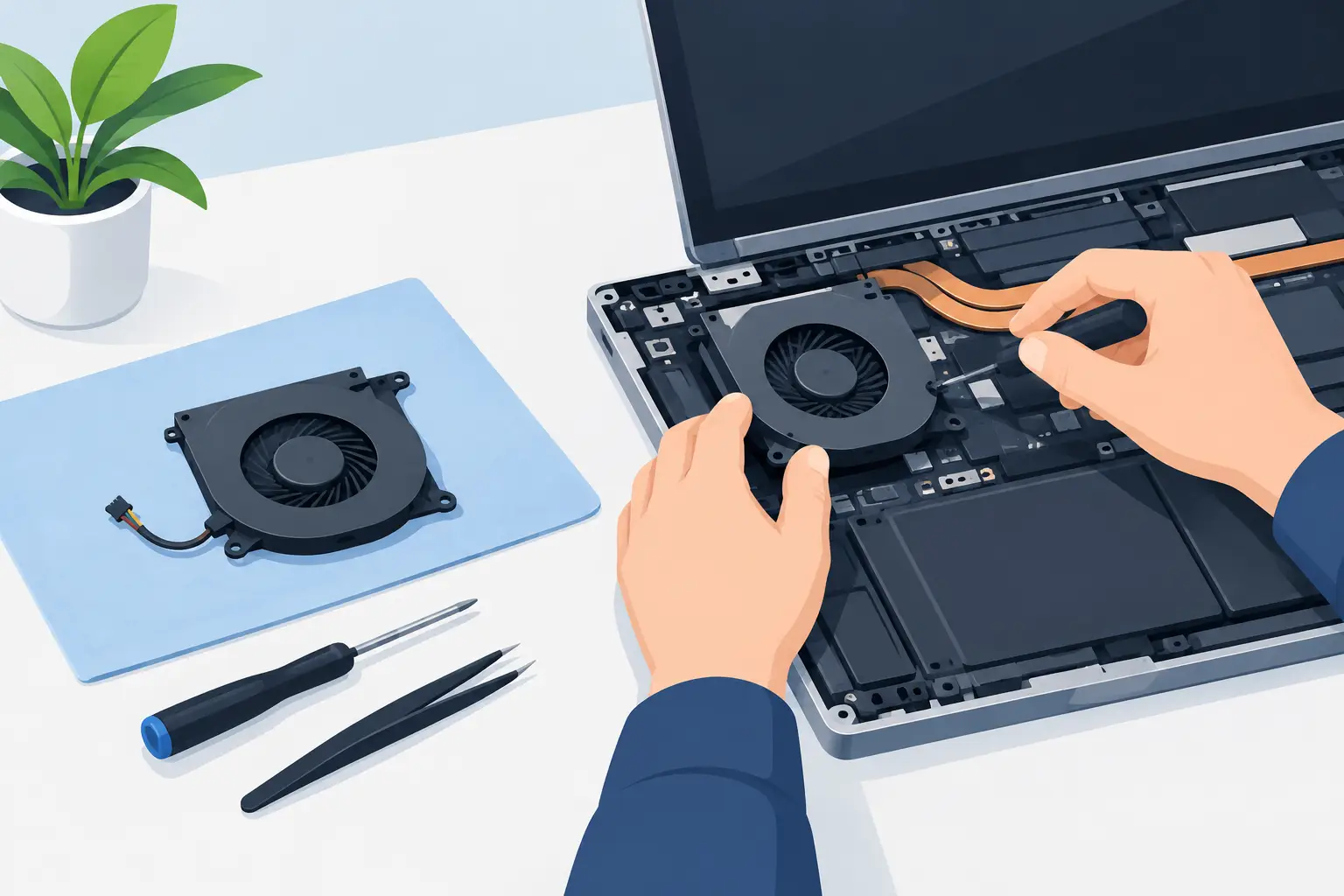
A laptop that sounds like a small hoover, overheats during simple tasks, or suddenly shuts down is often dealing with a cooling problem. Learning how to replace laptop fan can save a repairable device from further heat damage, but it is not a one-size-fits-all job. Laptop fans vary greatly between models, and getting the wrong part or forcing the casing open can turn a straightforward repair into a more expensive fault.
For many laptops, a fan replacement is practical when the machine is otherwise working well. The key is confirming that the fan is genuinely at fault, ordering the exact compatible part, and taking your time around delicate connectors, screws and internal cables.
Check Whether the Fan Needs Replacing
Fan noise does not always mean the fan has failed. Dust build-up can make a fan work harder and become louder, while old thermal paste or a blocked heatsink can cause temperatures to rise even when the fan itself is still functional. Before opening the laptop, listen carefully to the type of noise it makes.
A steady rush of air usually points to a fan working hard because the laptop is hot. A rattling, clicking, grinding or scraping noise is more likely to mean worn fan bearings or damaged blades. If the fan does not spin at all, the laptop overheats quickly, or the system reports a fan error at start-up, replacement is often the sensible next step.
You should also rule out software causes. High processor use from background applications, updates or malware can keep a healthy fan running at full speed. Check Task Manager on Windows or Activity Monitor on a Mac before assuming the hardware is the issue.
Get the Right Replacement Fan
The safest way to identify a replacement is by using the laptop’s full model number and the part number printed on the existing fan. The model range alone is rarely enough. Two versions of the same laptop can use different motherboards, heat pipes, fan connectors or screw positions.
The model number is commonly printed on a label on the underside of the laptop. On some devices, it may be listed in the system information screen. Once the base cover is removed, photograph the original fan label before disconnecting anything. Match its part number, voltage, connector type and mounting layout.
Be cautious with generic listings that claim to fit a wide selection of laptops. A fan may look almost identical but have a different connector or rotate in the opposite direction. Poor-quality replacement parts can also be noisy, underpowered or short-lived. A good-quality, model-specific part is worth the small extra cost.
What you will need
For most laptop fan replacements, you will need a suitable precision screwdriver set, a plastic opening tool, tweezers, an anti-static wrist strap if available, and a clean, well-lit work surface. Keep screws organised as you remove them. Laptop screws often look similar but differ in length, and fitting a long screw in the wrong place can damage the keyboard, screen or motherboard.
If the fan sits beneath the heatsink assembly, you may also need fresh thermal paste and isopropyl alcohol for cleaning old residue. Do not reuse dried or contaminated thermal paste if you have had to remove the heatsink.
How to Replace Laptop Fan Safely
Start by saving important files, shutting the laptop down fully and unplugging the charger. Remove any USB devices, memory cards or accessories. If your model has a removable battery, take it out first. Most newer laptops have an internal battery, so disconnecting it once the cover is open is an essential safety step.
Place the laptop upside down on a soft cloth to protect the lid. Remove the screws holding the bottom cover in place, checking whether any are hidden beneath rubber feet, labels or service panels. Use a plastic opening tool around the seam and work gently. Never use excessive force or a metal blade, as this can mark the casing or damage clips.
Once inside, locate the battery connector and disconnect it from the motherboard. Do not pull on the wires. Use the plastic connector itself and ease it out in the direction it is designed to travel. This reduces the risk of accidental short circuits while you work.
The fan is usually positioned near a vent and connected to a copper heatsink pipe. Take a clear photo before removal. This gives you a reliable reference for cable routing, screw locations and connector orientation during reassembly.
Disconnect the fan cable from the motherboard carefully. It may lift upwards, slide sideways or use a small latch depending on the design. Remove the fan screws, then lift the fan out without pulling against the heatsink or nearby cables.
If the fan is integrated into the heatsink assembly, the repair becomes more involved. Loosen the heatsink screws in the numbered order marked on the metal plate, if present. Lift it evenly, clean the old thermal paste from the processor and heatsink contact surface, then apply a small amount of fresh paste before refitting. Tighten the screws gradually in the indicated order rather than fully tightening one corner at a time.
Fit the replacement fan in the same orientation as the original. Secure the screws, reconnect the fan cable and check that no wires are trapped near the blades. Reconnect the battery, but do not refit every cover screw immediately. First, power the laptop on and listen for normal fan operation.
Test the Repair Before Closing the Laptop
A successful repair should produce a smooth, consistent fan sound with no rattle or grinding. Let the laptop run for several minutes, then open a few normal applications. You can use the device’s built-in diagnostics, if available, or a temperature-monitoring tool to check whether temperatures settle under ordinary use.
Do not judge the repair solely by whether the fan spins. Air must also flow freely through the vents. If the laptop still becomes very hot, shuts down, or runs the fan constantly, there may be a blocked heatsink, failing temperature sensor, damaged charging circuit, processor fault or software issue.
Once you are satisfied, switch the laptop off, refit the base cover and return each screw to its original position. Do not overtighten. Small laptop screw mounts can strip easily, especially in plastic chassis designs.
When a Professional Fan Repair Is the Better Choice
Some laptops are designed to be opened easily, while others use glued covers, hidden screws, fragile clips or components layered tightly around the cooling system. Slim ultrabooks, MacBooks, Microsoft Surface devices and gaming laptops can be particularly awkward. A fan replacement may require removing the motherboard, screen assembly or several other components first.
Professional repair is also a safer choice if the laptop has liquid damage, swelling in the battery, burnt smells, intermittent power, or overheating that has already caused crashes. Replacing the fan alone may not solve these faults, and further testing can prevent you from spending money on a part that was never the real problem.
At Mobitech Sheffield, technicians can assess laptop cooling faults, identify the correct replacement part and carry out repairs with clear pricing and warranty-backed workmanship. For many customers, that means less downtime and no risk of damaging a device needed for work, study or family life.
A noisy laptop fan is worth dealing with early. Whether you replace it yourself or have it checked by an experienced repairer, restoring proper cooling can help protect the processor, battery and motherboard – and give an otherwise reliable laptop plenty more useful life.
