
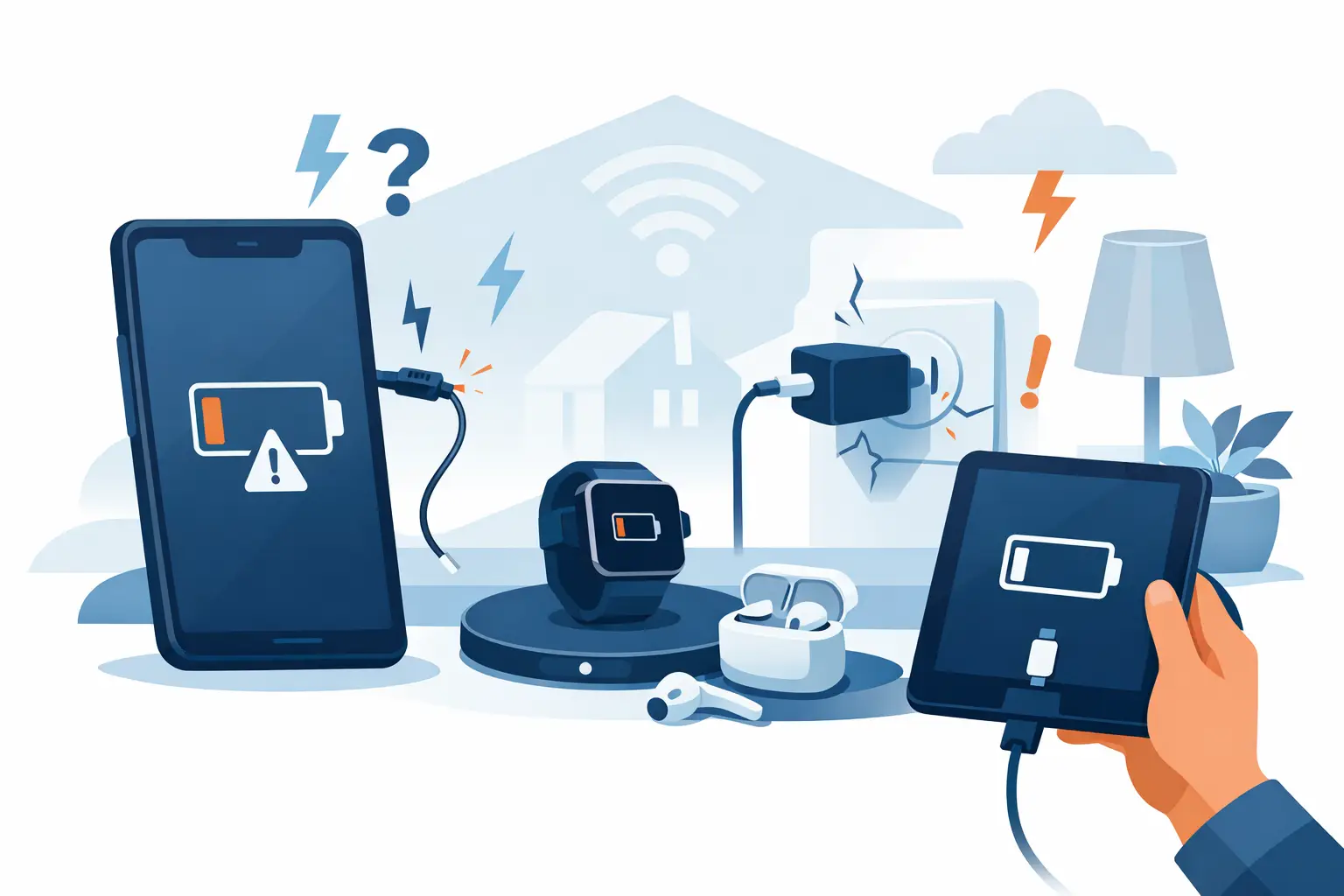
A phone that will not charge at 7am can derail the whole day. Whether you need it for work, study, travel or keeping in touch with family, the best fixes for charging problems begin with a few safe checks – not force, guesswork or buying parts you may not need.
Charging faults are common across phones, tablets, laptops, smart watches and games consoles. The cause can be as simple as a worn cable or compacted pocket lint, but it can also point to a damaged charging port, failing battery or internal board fault. The key is to rule out the straightforward causes first and recognise when a professional repair is the sensible next step.
1. Check the plug, cable and power source
Start outside the device. A cable can look perfectly fine while its internal wiring has failed, particularly near the connector where it bends most often. Try a known-working cable and plug that are suitable for your device, then test a different wall socket. If you normally charge from a laptop USB port, car socket or extension lead, switch to a direct mains socket for this test.
Use a good-quality, compatible charger. Cheap or poorly made charging accessories may charge slowly, disconnect repeatedly or deliver unstable power. For USB-C laptops and tablets, the charger must also provide enough wattage. A low-power phone charger may show a charging symbol on a laptop but still be unable to increase the battery level.
If a different cable and plug solve the issue, replace the faulty accessory. It is the quickest and least expensive outcome.
2. Look carefully inside the charging port
A loose connection is often not a loose port. It is usually pocket fluff, dust or debris packed into the bottom of the charging socket. This stops the connector seating fully, so charging cuts in and out when the cable moves.
Turn the device off if possible and inspect the port in good light. Do not use a pin, paperclip, knife or anything metal. These can scratch or bend the delicate contacts, create a short circuit and turn a clean into a repair. Avoid pouring liquid or compressed air directly into the port as well.
A dry, soft anti-static brush is the safer option for light surface dust. If debris is compacted or the connector still will not sit securely, stop there. Proper charging port cleaning needs the right tools and a steady hand, especially on USB-C and Lightning ports where the internal pins are easily damaged.
3. Restart the device and check for software issues
Not every apparent charging fault is physical. Occasionally, a phone, tablet or laptop is charging but the battery indicator is frozen, a background process is draining power faster than it arrives, or software is misreading battery status.
Restart the device, then connect it to a reliable charger and leave it undisturbed for 20 to 30 minutes. A fully depleted battery may not show an immediate response. If it powers on, check for a pending system update and look for battery or power-management settings that may limit charging.
On some smartphones, features designed to preserve battery health intentionally pause at around 80 per cent until they expect you to need the device. That is normal behaviour, not necessarily a fault. However, if the percentage is stuck, falls while connected to a suitable charger, or only charges after repeated reconnecting, further diagnosis is needed.
4. Let an overheated or very cold device recover
Modern devices protect their batteries by slowing or stopping charging at unsafe temperatures. You may see a temperature warning, or you may simply notice that charging has paused after using demanding apps, gaming, video calls or satellite navigation.
Remove the case, disconnect the charger and let the device cool naturally in a dry, shaded room. Do not put it in a fridge, freezer or against a radiator. Sudden temperature changes can cause condensation and make the problem worse.
Once the device has returned to room temperature, try charging again. If overheating happens regularly with ordinary use, or the back of the device is lifting, warm or swollen, stop using it and arrange an assessment. A swollen battery is a safety concern and should never be pressed down or punctured.
5. Test wireless charging separately
Wireless charging can help narrow down the fault on compatible phones and smart watches. If a device charges wirelessly but not through its cable, the likely issue is with the cable, charging port or port-related circuitry. If it charges by cable but not wirelessly, check that the charging pad is connected properly, the phone is centred, and no thick case, metal plate or card holder is blocking the connection.
This test is useful, but it is not a permanent workaround for a damaged port. Wireless charging is typically slower, creates more heat and is not available on every device. A phone that needs wired charging for fast top-ups, data transfers or car connectivity still deserves a reliable port.
6. Watch for signs of battery failure
Charging problems and battery problems often overlap. A battery may accept a charge but lose it very quickly, shut the device down at 20 or 30 per cent, or take hours to reach a usable level. On laptops, the charger may work normally while the battery percentage remains low or the device only works when plugged in.
Battery health declines gradually, but a sudden change after a drop, liquid exposure or prolonged heat can mean more than ordinary wear. Check whether the battery level rises consistently and whether the device keeps its charge after you unplug it. If performance is poor alongside charging issues, a battery replacement may be more appropriate than a port repair.
The trade-off is simple: an older device with a healthy screen, cameras and main board can often gain years of useful life from a quality battery replacement. But where there is water damage or multiple faults, a technician should test it before any part is fitted.
7. Know when the charging port needs repair
The strongest sign of a port fault is a cable that only charges at a particular angle, falls out easily, or no longer clicks firmly into place despite trying another cable. Visible bent pins, corrosion, a burnt smell, error messages about unsupported accessories and a device that does not respond to known-good chargers also need professional attention.
Do not keep wiggling the cable to make a connection. That can damage the port further and may affect the charging circuit on the board. Similarly, do not attempt a DIY port replacement unless you have experience with fine electronics repair. Many modern devices are tightly sealed, and opening them without the correct tools can damage screens, seals, batteries and flex cables.
Best fixes for charging problems: when to book a repair
If the simple checks have not restored stable charging, an in-person diagnosis saves time and avoids replacing the wrong part. A technician can test the charger, battery, charging port and relevant circuitry to identify the real cause. This matters because the same symptom – a phone not charging – can come from several different faults.
For customers in Sheffield, Mobitech Sheffield can assess charging faults across major phone, tablet, laptop, smart watch and games console brands. Clear fault diagnosis is particularly valuable after liquid damage, a hard drop or a failed DIY clean, when the visible issue may not be the only one.
Before bringing your device in, back it up if it still powers on and make a note of what happens when you connect the charger. Does it show a symbol but not gain percentage? Does it only work at an angle? Did the issue start after a drop or exposure to moisture? These details help make the assessment faster.
A reliable charge should not depend on holding a cable in place or hoping the battery lasts until you get home. Start with the safe checks, protect the device from further damage, and get it properly assessed when the fault persists. A straightforward repair can often get the device you rely on back to normal far sooner than replacing it.
