
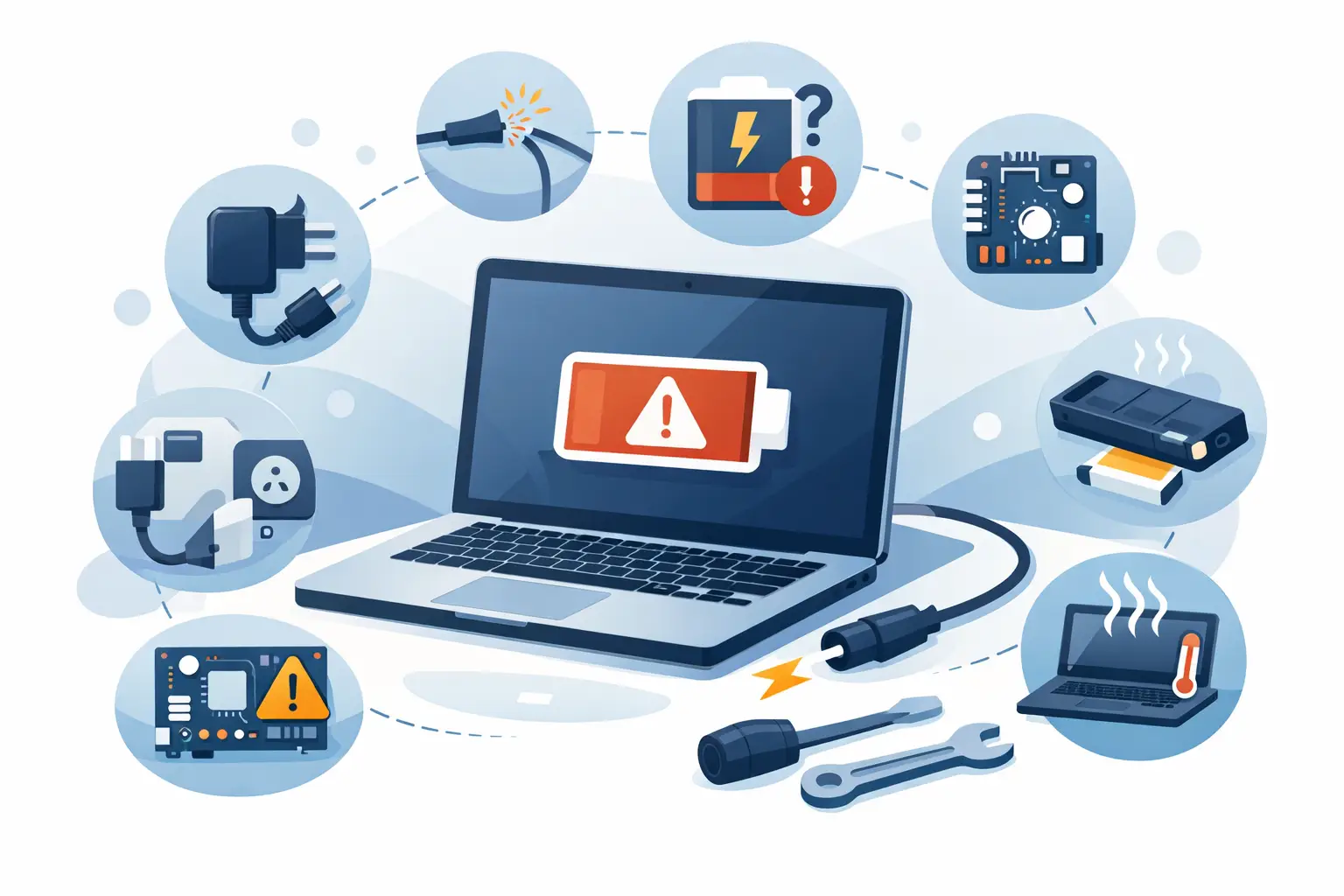
A laptop that shows “plugged in” but will not gain charge can bring work, study and everyday tasks to a halt. If you are asking what causes laptop not charging issues, the answer is not always the battery. The charger, charging port, software settings and internal power circuitry can all be responsible. A few safe checks can narrow it down quickly – but forcing a loose connection or fitting a cheap replacement charger can turn a small fault into a bigger repair.
What causes a laptop not charging?
The most common cause is a problem somewhere in the charging path: the wall socket supplies power to the charger, the charger supplies the laptop, and the laptop’s port and internal charging circuit manage that power before it reaches the battery. A fault at any point can stop charging.
The exact symptoms matter. A laptop that works only while plugged in usually points towards a worn battery. One that charges at a particular angle may have a damaged charging port or cable. If there are no lights, no charging symbol and no power at all, the issue could be the charger, port or motherboard-level power circuit.
1. A faulty charger or damaged cable
Chargers take more wear than most people realise. They get tightly wound into bags, pulled from sockets by the cable and bent around desks or sofas. Internal wires can break even when the outer coating looks fine. The transformer inside the power adaptor can also fail, especially after a power surge or years of heavy use.
Check for fraying, exposed wire, scorch marks, unusual heat or a loose connector. If the charging light comes on and off when you move the lead, stop using it. A damaged cable can create an unreliable connection and, in some cases, poses a safety risk.
Not every charger with the right-looking connector is suitable. USB-C laptops in particular may need a specific wattage and Power Delivery support. A low-power mobile phone charger may keep a laptop switched on at light use, but it may not charge the battery or may charge extremely slowly. Always use a compatible, good-quality charger with the correct rating.
2. A worn or failed battery
Laptop batteries are consumable parts. Each charging cycle gradually reduces their capacity, and heat speeds up that wear. After several years, a battery may show 100% but drain very quickly, refuse to charge beyond a low percentage, or fail completely.
A battery fault is likely if your laptop runs normally from the mains but turns off immediately when the charger is removed. You may also see messages such as “battery not detected”, “service recommended” or “plugged in, not charging”. Some manufacturers include battery health checks in their built-in diagnostics.
A replacement battery is often a sensible repair when the laptop is otherwise in good condition. The right part matters: poor-quality batteries can offer less capacity, fit badly or have unreliable protection circuitry. This is one job where a warranty-backed replacement gives useful peace of mind.
3. A loose, blocked or damaged charging port
The charging port is another common answer to what causes a laptop not charging. Dust and debris can prevent the connector from seating properly, while repeated pressure on the plug can loosen the port from its mounting or damage the pins inside.
Look into the port using a torch, without inserting anything metal. Lint, bent contacts or a connector that feels unusually loose are warning signs. If the charger needs to be held in one position before charging begins, the port may be damaged rather than the charger.
Do not poke aggressively inside the port or try to bend pins back yourself. Charging ports are delicate and connected to components that are easily damaged. A technician can inspect the port properly and determine whether it needs cleaning, resoldering or replacement.
4. Software, drivers or power settings
Not every charging issue is physical. Windows power management, battery drivers and manufacturer utilities can sometimes misreport charge levels or restrict charging. Some laptops have a battery care mode that deliberately stops charging at 60% or 80% to reduce long-term battery wear. That is normal if you have enabled it, but it can look like a fault.
Start with a full restart, then check for operating system updates and any manufacturer battery settings. In Windows, reinstalling the battery and AC adaptor entries through Device Manager can resolve a driver glitch. If your laptop has a removable battery, switch it off, disconnect the charger, remove the battery, hold the power button for around 15 seconds, then reconnect everything and test again.
These checks are worthwhile, but do not keep resetting software if the port is loose, the charger is overheating or the battery is swelling. Those are hardware issues that need attention.
5. Overheating and temperature protection
Lithium-ion batteries do not charge safely at every temperature. If a laptop is very hot after gaming, video editing or sitting on a soft surface that blocks its vents, charging may pause until the battery cools down. The same can happen in very cold conditions.
Let the device cool naturally on a hard, clear surface and make sure the vents are not blocked. Never put a laptop in a fridge or use extreme cooling methods. If it regularly gets hot during ordinary tasks, fan blockage, dried thermal paste or another internal fault may be contributing to both overheating and charging problems.
6. A swollen battery
A swollen battery is urgent. It can push up the trackpad, separate the bottom case, create gaps around the keyboard or make the laptop rock on a flat surface. You may also notice the case no longer closes correctly.
Stop charging and using the laptop if you suspect swelling. Do not press the casing flat, puncture the battery or put it in household waste. A swollen battery needs safe removal and replacement by an experienced repairer.
7. Liquid damage or corrosion
Even a small spill can affect charging, particularly if liquid reaches the charging port, battery connector or motherboard. The laptop may initially appear fine and then develop a charging fault later as corrosion forms on internal components.
If liquid has been spilled on your laptop, unplug it straight away and switch it off. Avoid repeatedly trying to power it up or charge it “to see if it works”. The safest next step is an internal inspection and professional cleaning, as early treatment can prevent corrosion from spreading.
8. A fault on the motherboard or charging circuit
When the charger, battery and port all test correctly, the fault may lie on the motherboard. Charging circuits include small components that regulate voltage and protect the laptop from power problems. Damage from a surge, liquid, overheating or a failed component can stop the battery from charging even though the laptop still powers on.
This type of repair needs proper diagnosis rather than guesswork. Replacing a battery will not solve a failed charging IC, and replacing a port will not repair corrosion elsewhere on the board. A clear diagnostic process helps identify the actual fault before you pay for work that will not fix the problem.
Safe checks before booking a repair
First, test the charger in a known working wall socket and inspect both ends of the cable. Remove any docking station or USB hub and connect the charger directly to the laptop. If possible, test with a compatible charger of the correct wattage.
Next, restart the laptop and check whether a battery preservation setting is limiting the charge level. Note what happens to the charging indicator and battery percentage. Does it charge intermittently? Does it only work at a certain angle? Does the laptop run on mains power but die when unplugged? These details help a technician diagnose the fault faster.
Avoid opening the laptop unless you have the right tools and experience. Modern laptops often use internal batteries, fragile clips and tightly packed components. An incorrect screw, damaged ribbon cable or punctured battery can quickly add to the cost of repair.
When it is time for professional diagnosis
Book a repair assessment if the charger gets hot, the port is loose, the battery is swollen, there has been liquid exposure or the laptop will not charge after basic checks. It is also worth getting help when the device is essential for work or university – waiting for a complete failure is rarely convenient.
At Mobitech Sheffield, laptop charging faults can be assessed to establish whether the issue is the battery, port, charger or internal circuitry. You should know what has failed, what the repair involves and the price before work goes ahead, with a no-fix-no-fee approach for added reassurance.
Your laptop does not need to be replaced simply because it will not charge. A careful diagnosis and the right repair can often get it back to reliable daily use without the cost and disruption of buying a new device.
